5.5 KiB
5.5 KiB
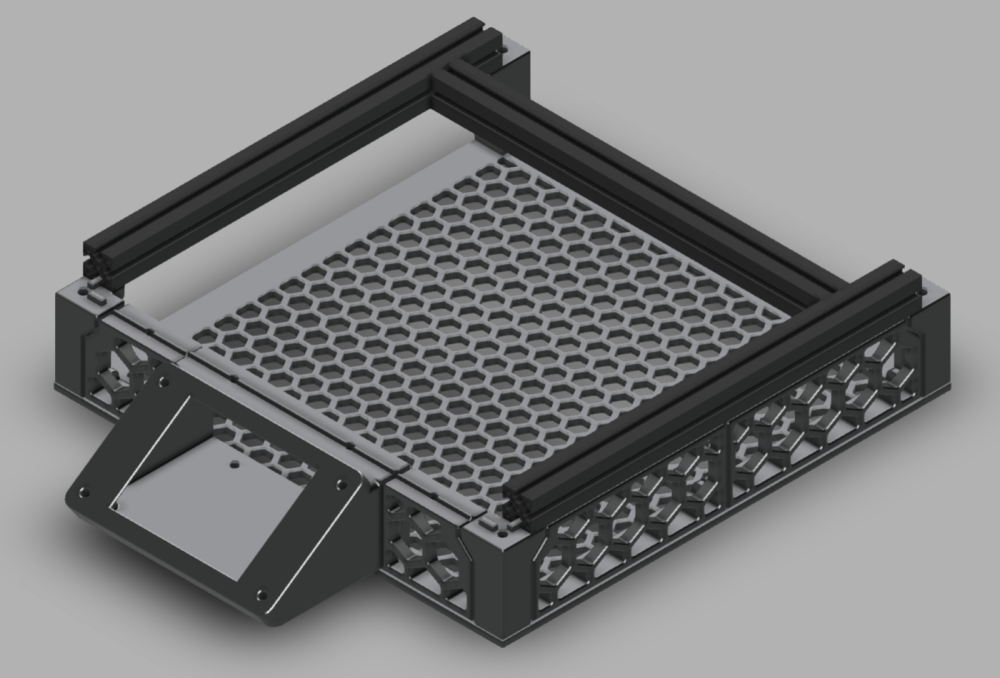
Voron 0 LCD Touchscreen Skirt
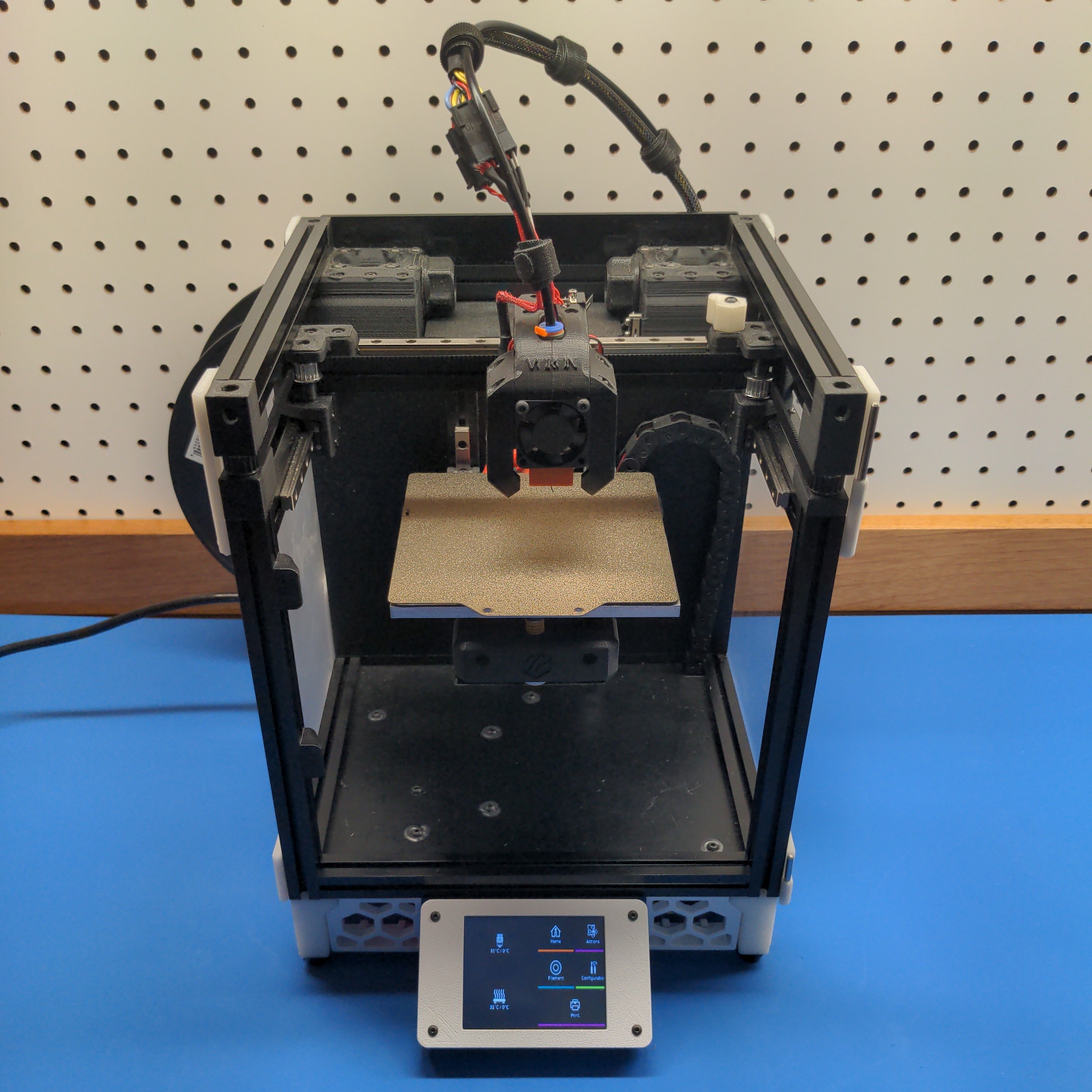
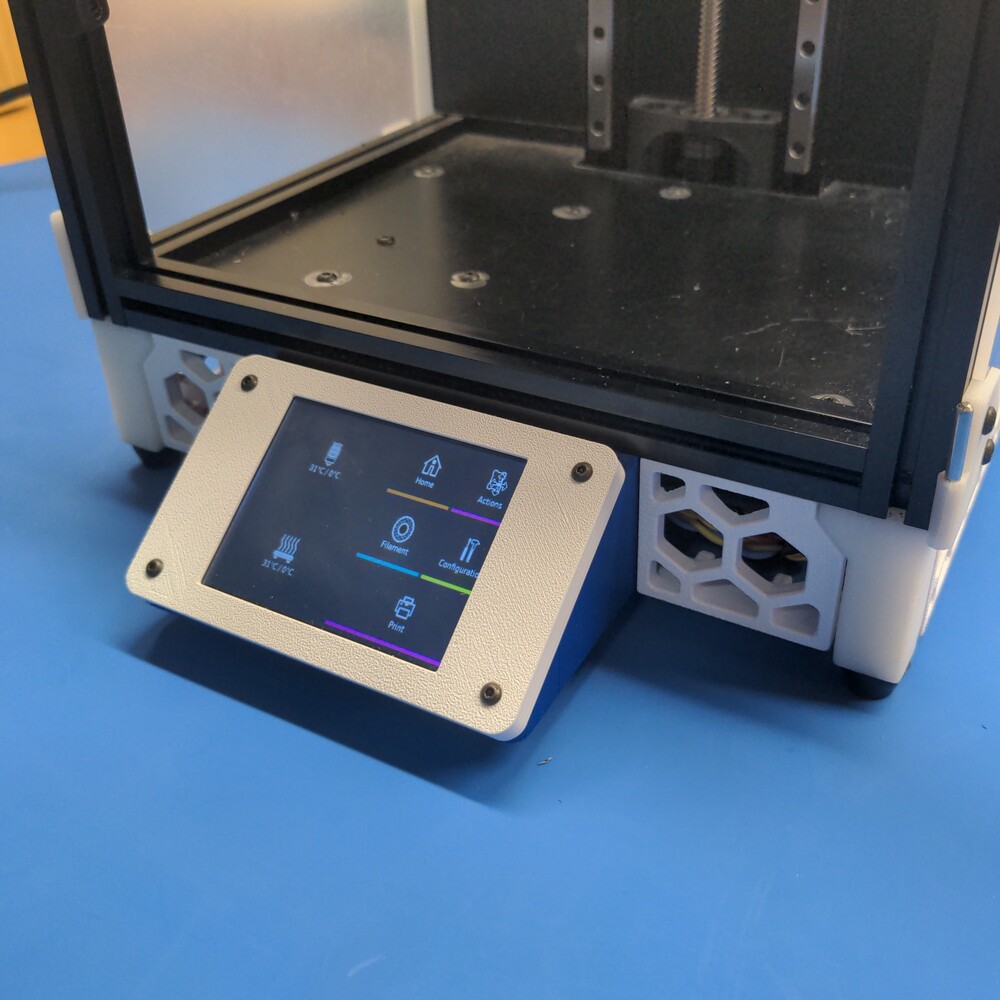
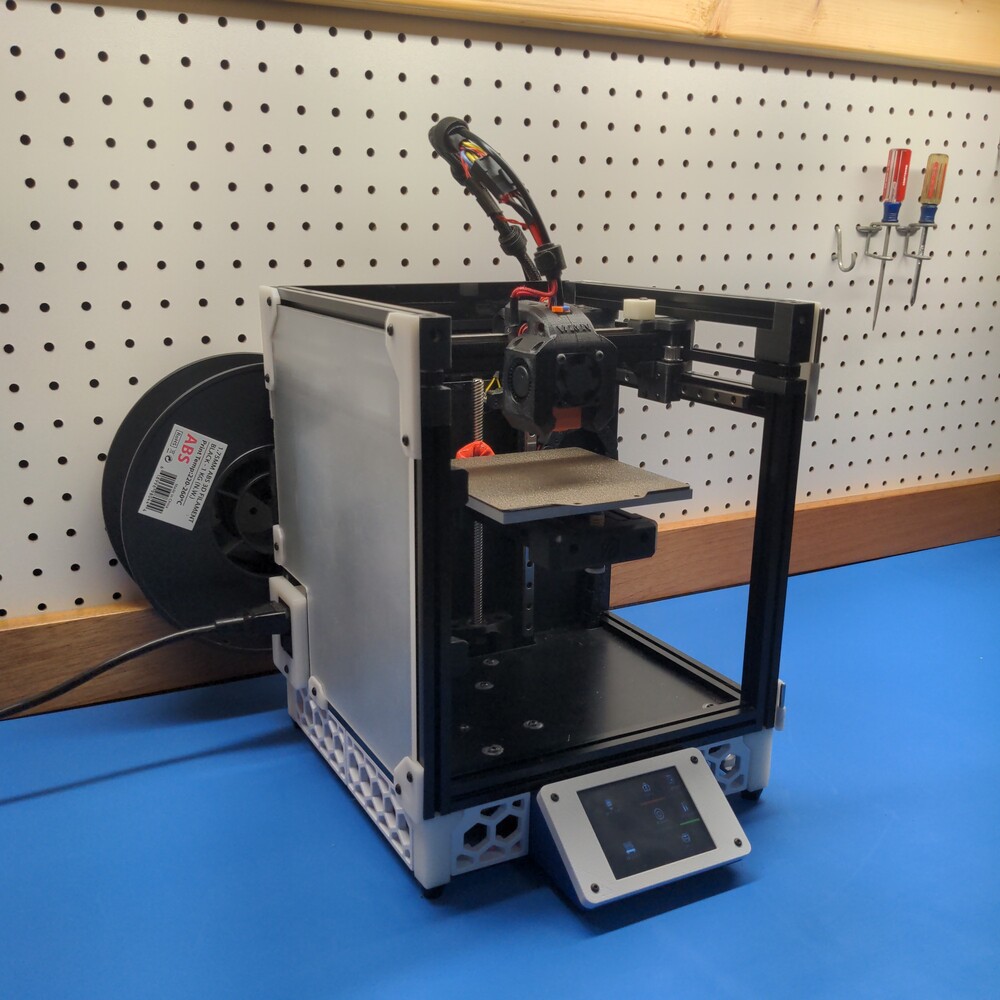
A large LCD touchscreen for OctoScreen or OctoDash.
Bill of Materials
All required parts are listed below. Supplier examples are provided for convenience.
Non-Printed Parts
Additional Non-Stock Parts:
| Qty | Description | Supplier Links |
|---|---|---|
| 1 | Adafruit PiTFT Plus 3.2 Touchscreen | Adafruit |
| 1 | M2.5 x 3.0 mm Heat Set Inserts | Alliexpress, McMaster Carr |
| 1 | M3 x 50 mm SHCS | Alliexpress, Bolt Depot |
| 4 | M2.5 x 10 mm BHCS | Alliexpress |
| 1 | 40-pin IDE Extension Cable | Amazon |
Repurposed Stock Parts:
| Qty | Description | Supplier Links |
|---|---|---|
| 12 | M3 x 8 mm BHCS | Alliexpress, Bolt Depot |
| 12 | M3 Makerbeam 1515 T Slot Nuts | Alliexpress, Amazon |
| 4 | Rubber Feet (14 x 11 x 9) | Alliexpress |
3D Printed Parts
| Qty | Description | STL Slicer Image |
|---|---|---|
| 2 | Skirt Side A |  |
| 2 | Skirt Side B | 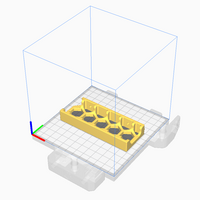 |
| 1 | Skirt Front Left | 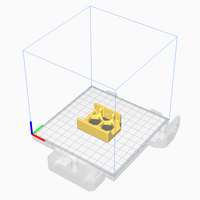 |
| 1 | Skirt Front Right | 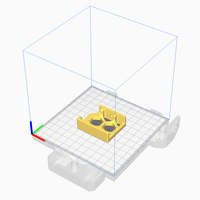 |
| 1 | LCD Mounting Bracket | 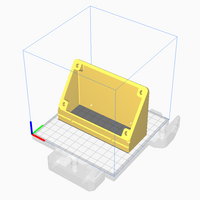 |
| 1 | LCD Face Plate |  |
| 2 | Foot Front |  |
| 2 | Foot Rear |  |
All 3D Parts can be printed without support material: ABS, 0.4 mm nozzle, and 0.2mm layers.
Assembly Instructions
- Install 4 M2.5 heat set inserts into
LCD Mounting Bracket - Remove the stock V0 skirt and feet.
- Install extended feet with 50mm M3 SHCS.
- Install all
Side Skirt A/Bparts using the stock mounting T-nuts and M3 x 8 screws. - Install the
LCD Mounting Bracketusing the middle two T-nuts on the front extrusion. - Install
Front Skirt Left/Rightusing the remaining two T-nuts on each side of the LCD. - Connect the 40-pin ribbon cable to the
Adafruit PiTFT Plus. - Place the
Adafruit PiTFT Plusinto theLCD Face Plate. - Route the ribbon cable through
LCD Mounting Bracketto Raspberry Pi. - Secure
LCD Face Platewith four M2.5 x 10 screws.
Software Configuration
Follow the Adafruit LCD Installation Instructions.
The 3.2" LCD is pin-equivalent to the 2.8" LCD. You can safely follow the same instructions.
The recommended installation type is fbcp, framebuffer copy:
sudo python3 adafruit-pitft.py --display=28r --rotation=90 --install-type=fbcp
The fbcp option causes the X11 output to be mirrored on the PiTFT display.
CAD Design Files
Gallery