f2caa290f1
* Added PiTFT Mount Added PiTFT Mount * Update readme.md * Create STL * Add files via upload * Delete STL * Create readme.md * Added STL files * Delete [a]_display_mount_x2.stl * Delete display_middle_skirt.stl * Delete pitft70_housing_front.stl * Delete pitft70_housing_rear.stl * Create placeholder.md * Added Some Pictures * Update readme.md * Add files via upload * Update readme.md * Update readme.md * Delete printer_mods/Mac10goesBRRRT/BTT_PiTFT/Pictures directory * Add files via upload * Update readme.md * Update readme.md * Update readme.md * Update readme.md * Update readme.md * Update readme.md * Update readme.md * Update readme.md * Delete Display_Far.jpg * Delete Display_Close.jpg * Add files via upload * Update readme.md * Added Pictures and updated Instructions * Update readme.md * Added Printing Instructions * Add files via upload * Update readme.md * Update readme.md * Added my Entry in the List * Delete printer_mods/Mac10goesBRRRT/BTT_PiTFT/SLT directory * Add files via upload |
||
|---|---|---|
| .. | ||
| CAD | ||
| STL | ||
| images | ||
| readme.md | ||
readme.md
Overview:
This mod adds a mount for the BigTreeTech PiTFT. Currently the mod works for the PiTFT70, but im planning on adding a 5" and 3,5" option. The Mount allows the doors to work without any mods and doesnt protude beyond the Skirts. It adds about 11cm to the depth of the printer.
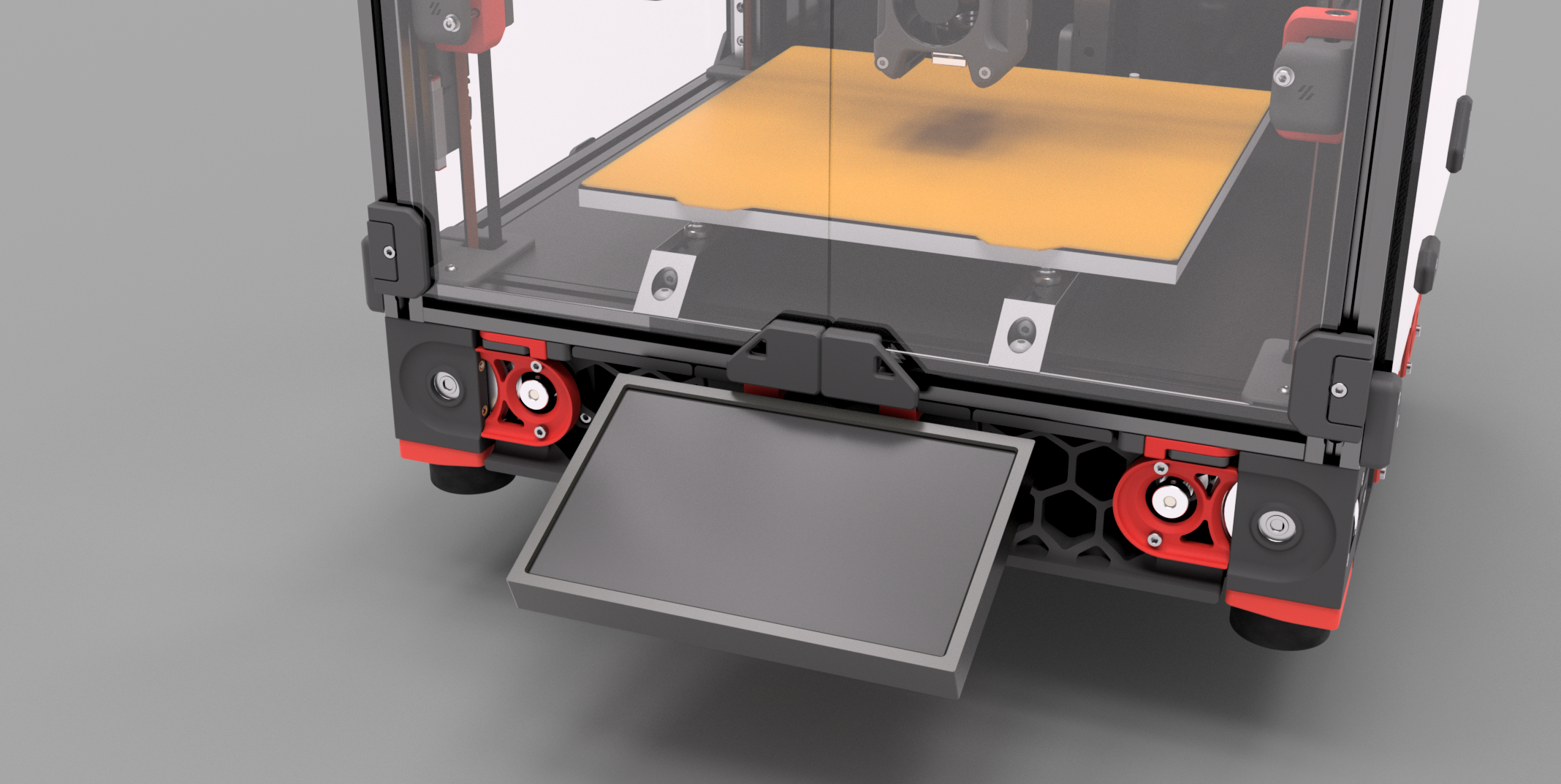
BOM:
- 1x M3 T-Nut/Hammerhead Nut
- 1x M3x8mm SHCS
- 2x M5 T-Nut/Hammerhead Nut
- 2x M5x10mm BHCS
- 4x M2,5x14mm BHCS OR 4x any M2,5 longer than 6mm
- 1x PiTFT70
- 1x Flat Flexible Cable 50cm or longer for Pi Cam/Pi Display
M2,5x14mm screws are included in the Display, the included Flex Cable is too short.
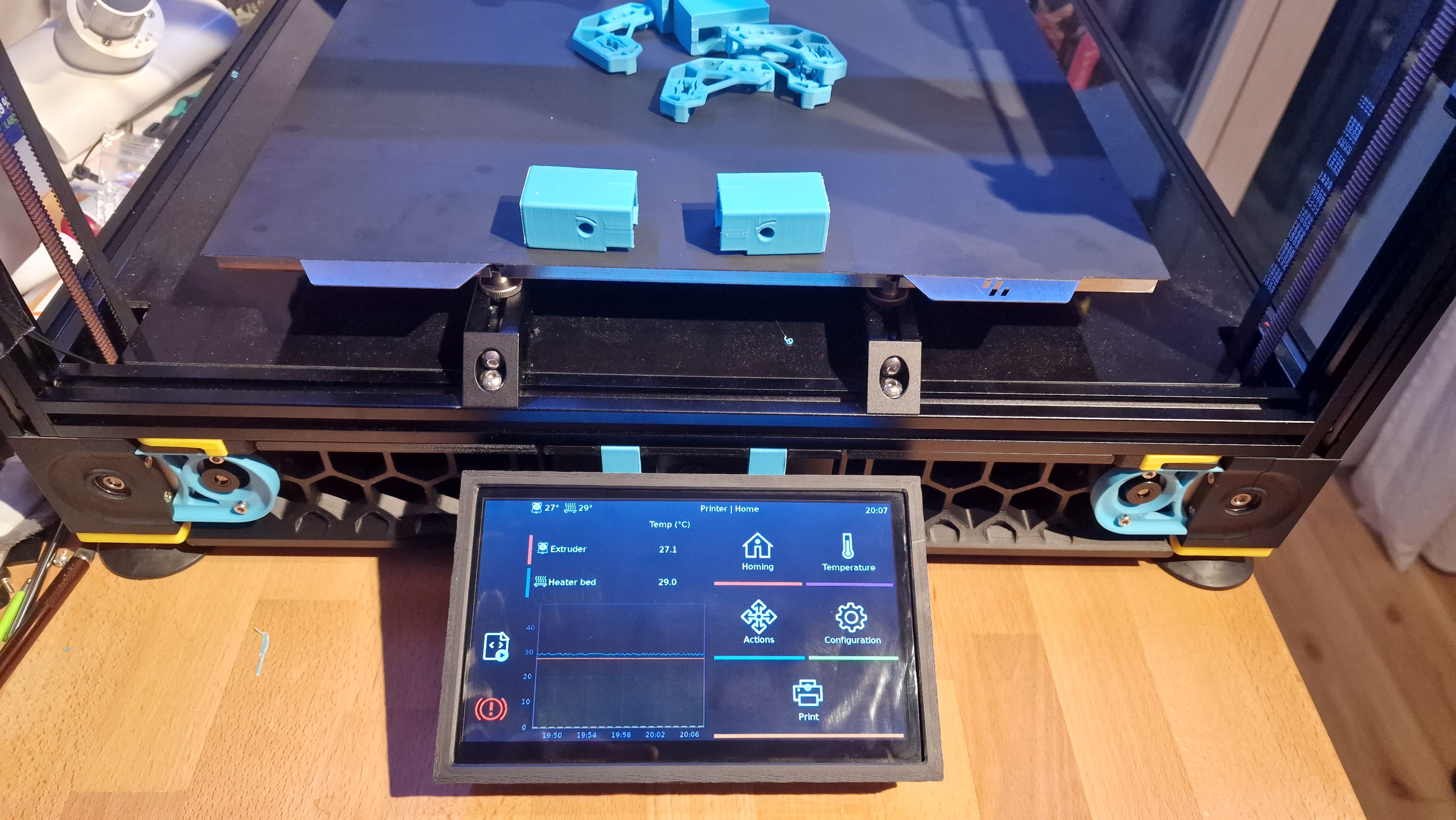
Printing
All Parts are already in the right orientation. Use the standard Voron Specs for printing.
Installation
-
Attach the 2 Mounts to the Frame with the M5 screws, feed the Cable through the Slot in the middle Skirt and mount it with the M3 screws.
-
Feed the Cable through the back of the Housing and attach it to the Display (unisolated part faces display). Use the Raspberry Mounts to attach the Display/Housing to the Frame.
-
Simply Push the Front Housing onto the back, it should fit
-
Connect the FFC to the Pis Display port (unisolated part faces towards USB).
-
Install Klipperscreen via KIAUTH or by doing it manually.
-
If the Display is flipped upside down, hit the toggle switch. Adjust the brightness as needed.
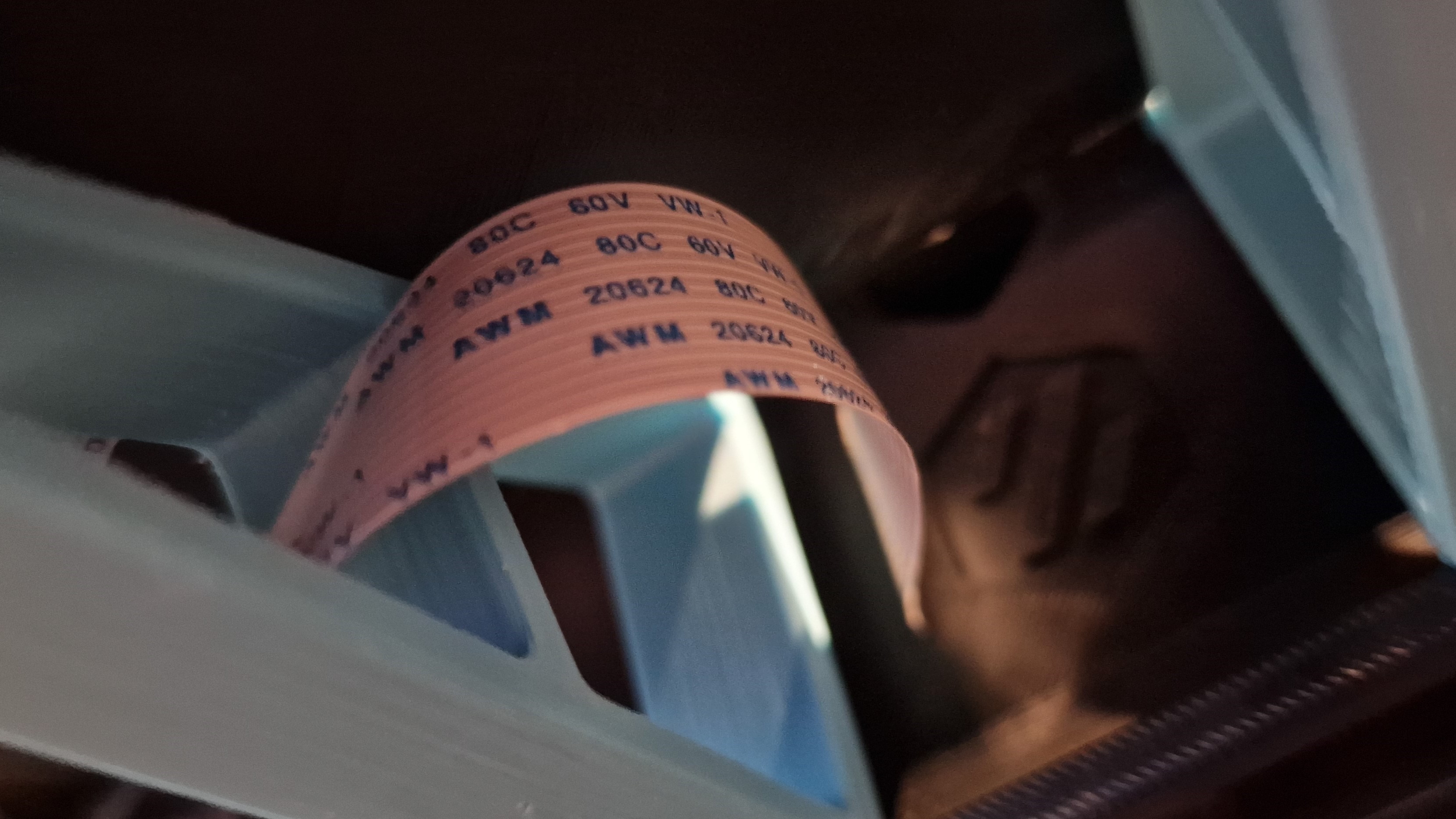
Here is a picture of how the FFC should be routed: